
Historical: Linux-based prototype
Graphical installer interface
This page documents the earlier Linux-based prototype as of 24 November 2026. It does not describe the independent Khelforge OS, and its steps are not instructions for it. See the independent Khelforge OS.
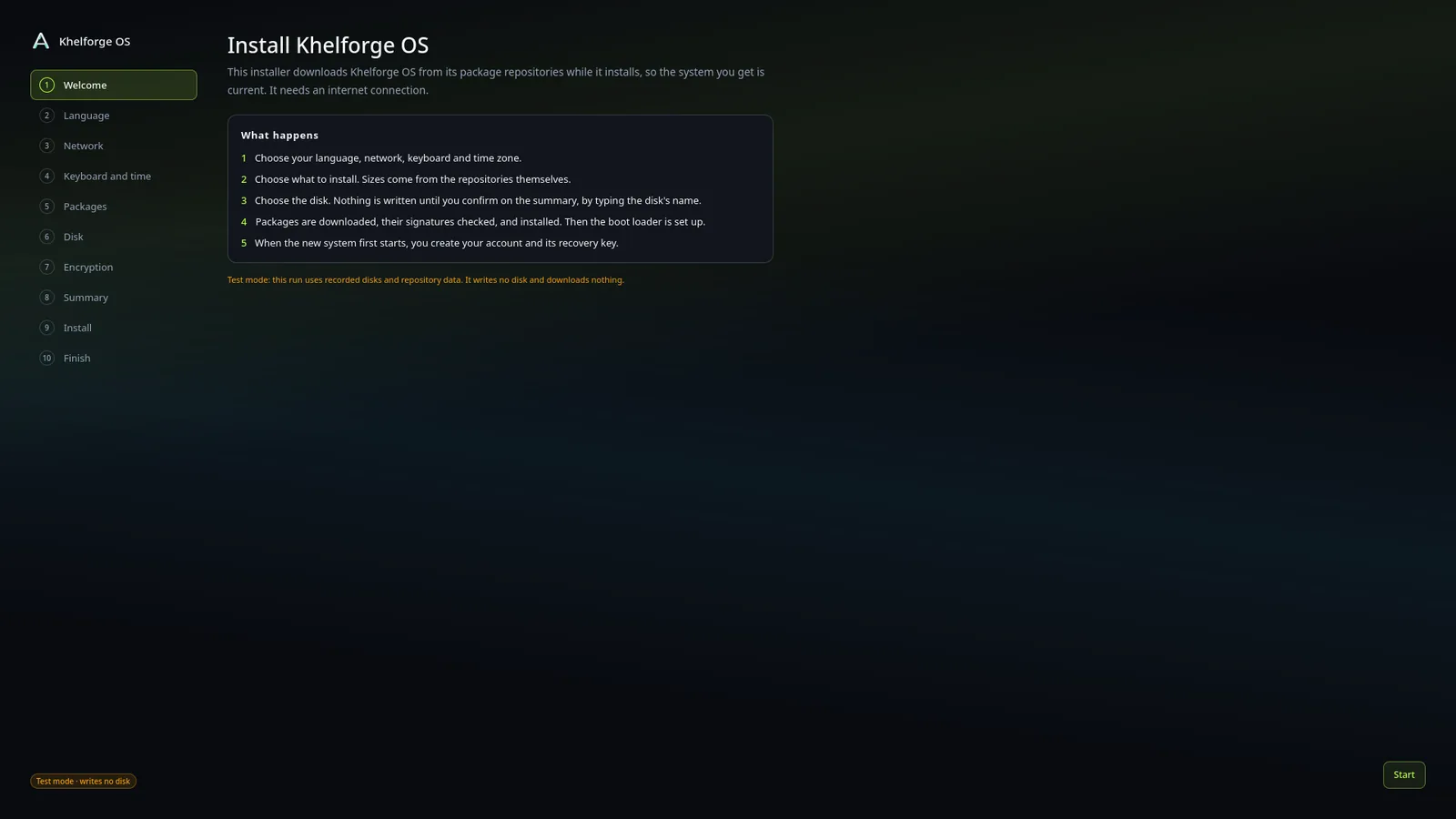
The installer is a window that leads through ten steps. It is built and tested offscreen with simulated disks and downloads. Its connection to the real installer backend exists in code and has unit tests, but the complete program has not yet installed a system, because the virtual machine tests drive the backend without this window.
| Step | What it asks | What allows Continue |
|---|---|---|
| Welcome | Nothing. It explains the process | Always |
| Language | Language of the installed system | Always. Default en_US.UTF-8 |
| Network | Wi-Fi network, if there is no cable | Connected, and the package databases are ready |
| Keyboard and time | Keyboard layout, time zone, computer name | A valid computer name |
| Packages | Optional packages | The selection resolves with every dependency, and any terms are accepted |
| Disk | The disk to erase | An eligible disk with a valid partition plan |
| Encryption | Whether to encrypt, and a passphrase | Plan ready, and a matching passphrase of at least 8 characters if encryption is on |
| Summary | A final check | Typing the disk path in a confirmation dialog |
| Install | Nothing. It shows progress | The installation finishes |
| Finish | Restart now or later | It is the last step |
The interface itself is in English only. The language choice affects the installed system.
A computer name has 1 to 63 lowercase letters, digits and inner hyphens.
Safety rules
Section titled “Safety rules”The rules that protect a disk are enforced by the program itself and not only by disabled buttons:
- Required options stay selected.
- An option the repositories cannot supply cannot be chosen.
- A disk that is in use, too small, read-only or otherwise refused cannot be chosen.
- Changing encryption discards the partition plan and asks for a new one.
- An installation starts only with the exact disk path typed, a connection, ready repositories, a complete selection and a ready plan. The disks are then read again. If the chosen disk has changed, the window returns to the Disk page and nothing starts.
The confirmation dialog gives focus to Cancel, so pressing Enter alone does not erase anything.
If the installer backend is missing, the window shows no disks and says that nothing was written.
Test mode
Section titled “Test mode”The screenshots on these pages come from a test mode. It uses recorded disks and repository data, simulates transfer speed and duration, and writes no disk. There is no packaged installer that readers can run today.
Layout and motion
Section titled “Layout and motion”In a narrow window the step list becomes a line of text and a thin bar. Page transitions stop under reduced motion.
How it was tested
Section titled “How it was tested”- Unit tests cover choices, required and unavailable options, option sizes, ineligible disks, passphrase rules, a partial disk path, a swapped disk, a full simulated installation, a resumed download and cancelling.
- Unit tests cover what the window sends to the backend, using a stand-in service.
- Visual tests drive the window at full size and in a narrow window under reduced motion. They cover keyboard selection, refused Wi-Fi passwords, repository and download failures, retry and cancel.
Known limitations
Section titled “Known limitations”- No test has run this window against the real installer backend. That belongs to the unfinished phase 5.
- The Welcome page says the installed system is current. With the pinned manifest it is as current as the pinned date, 2026-11-22.